Practice Tracks
Turn a MusicXML score into a rehearsal track for your part: hear your line clearly over the others, slow down the hard bars, loop them with a count-in, and take an MP3 home. Everything happens in your browser.
100% in your browser - your files never leave your device.
Only have a PDF or paper copy? Ask your director for the MusicXML - MuseScore, Sibelius, Finale and Dorico all export it.
How it works
Five steps from the choir's score to a rehearsal track on your phone.
Open the score
Drop the MusicXML your director exported from MuseScore, Sibelius, Finale or Dorico - or try the SATB sample. Every part is listed.
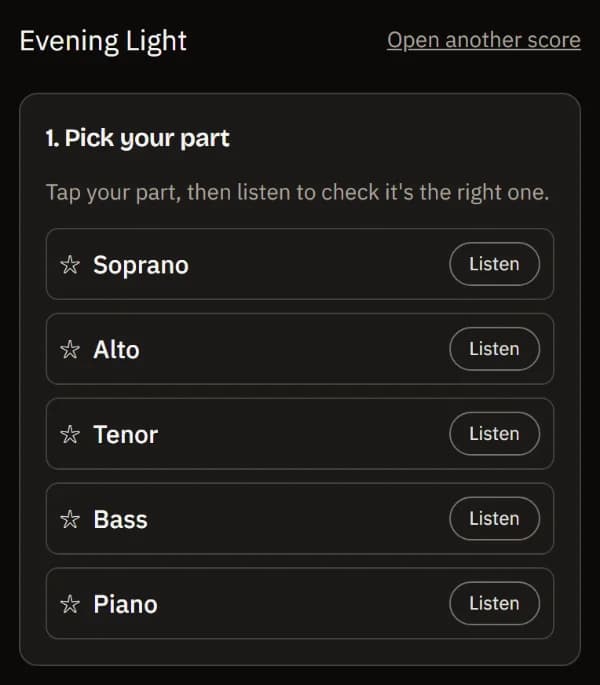
Pick your part
Tap your part: hear it highlighted over the others, on its own, or with everyone but you to sing along.
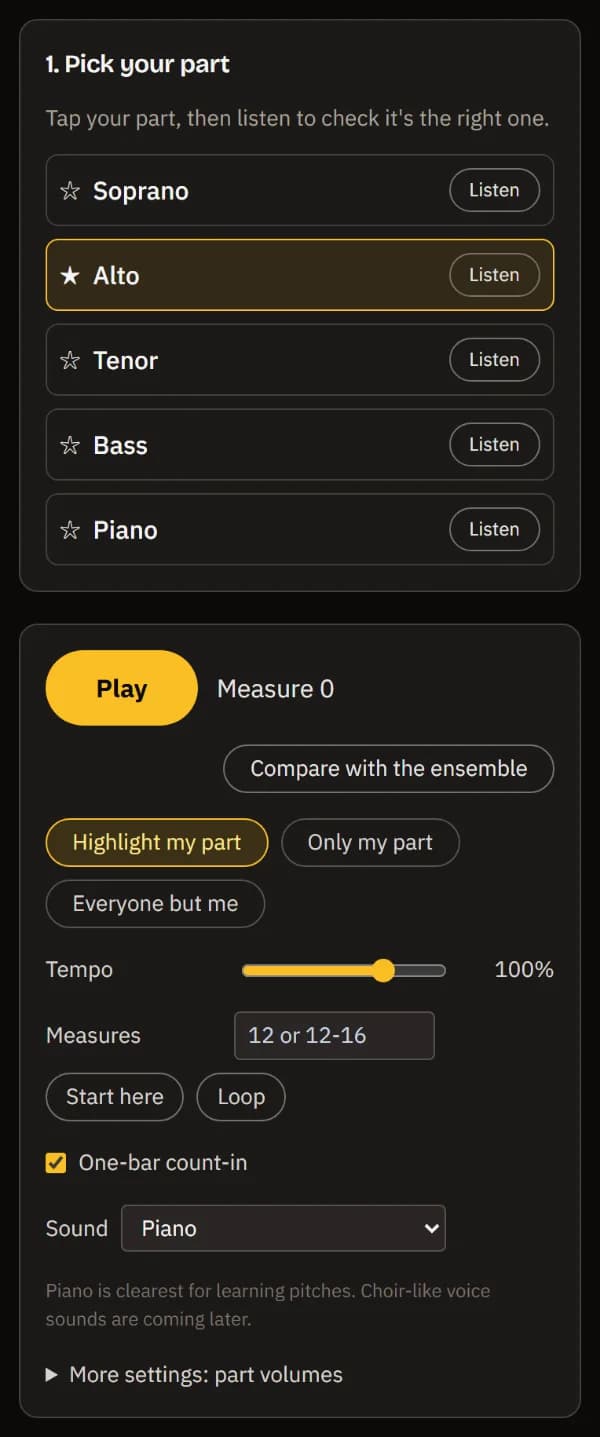
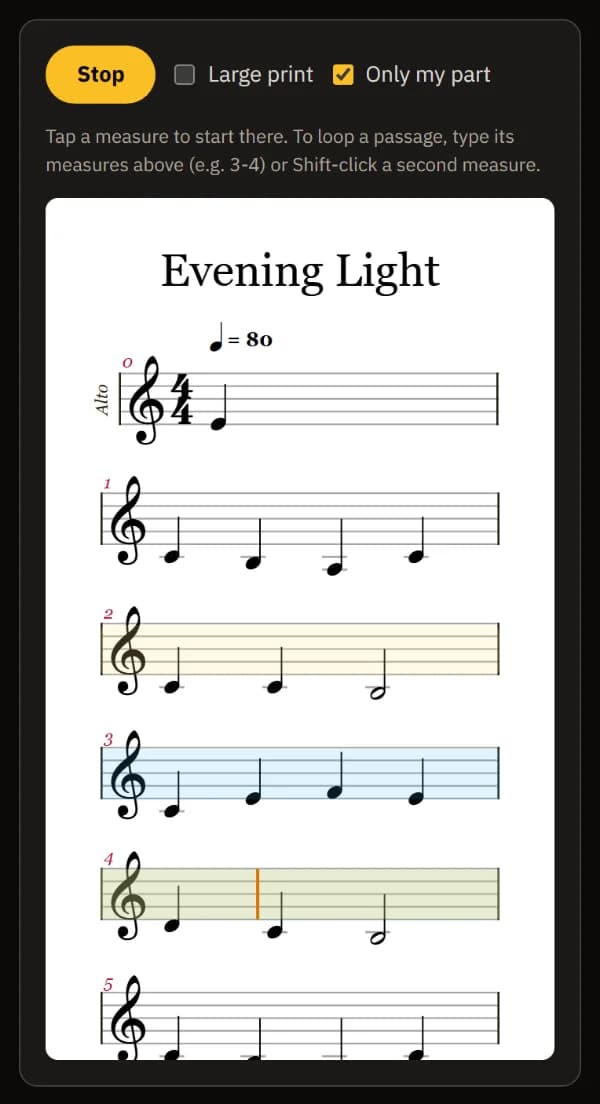
Slow down and loop
Set a practice tempo, loop the tricky measures with a count-in, and follow your line in the score.
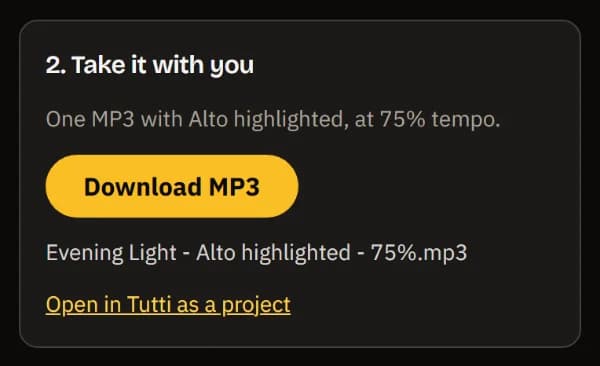
Take it with you
Download one MP3 of your mix at your tempo, named after the piece, your part and the tempo.
Tracks for the whole choir
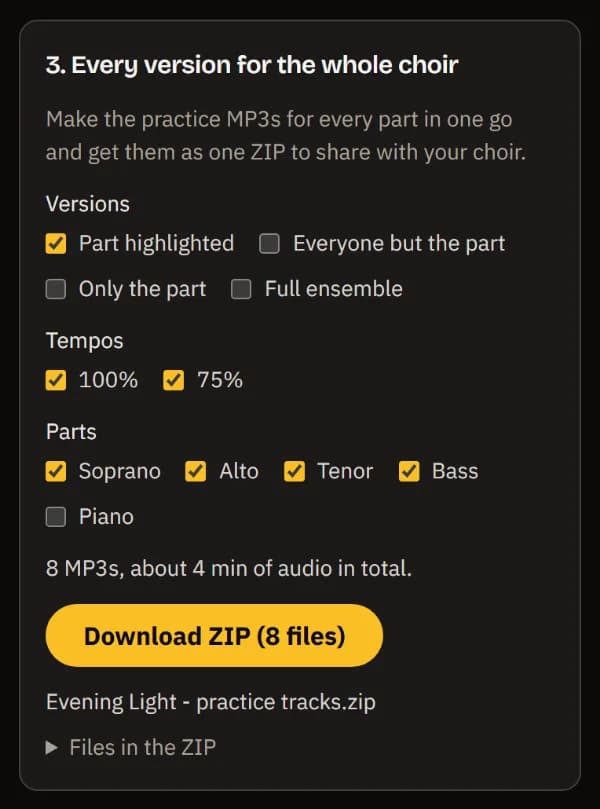
Directors: every part at 100% and 75%, made here in one go and shared as one ZIP.
Made for learning a part
Practice Tracks reads every part of the score as its own line and plays it with a clear piano sound, the easiest timbre to learn pitches from. Highlight raises your part and moves it to the centre while the other parts step back to the sides; Only my part and Everyone but me do what they say. Every choice is a preset on the original balance, so clicking twice never stacks up, and Reset undoes your own volume changes.
Tempo changes follow the whole tempo map of the score, repeats and first/second endings included, and the pitch never moves. The score is shown as written, with a cursor that follows the music through repeats and endings and turns the page for you; tap a measure to start there, or type a range like 12-16 to loop it. Large print keeps it readable on a phone. The MP3 is rendered on your device at a standard loudness with peaks kept below -1 dBTP.
Some things are not there yet: two voices written on one staff (for example soprano and alto together) play as one part, and the sound is piano or a simple tone - choir-like voices come later. PDF and paper scores need to be converted to MusicXML first.
Frequently asked questions
Is my score uploaded anywhere?
No. The score is read, played and turned into an MP3 inside your browser. Only the piano sound is downloaded from our sample library; your file never leaves your device.
My score has soprano and alto on the same staff. Can I hear them separately?
Not yet. The tool tells you when two voices share a staff and plays them together. Scores with one part per staff - the usual layout of choir scores exported from notation apps - work best.
Can I make practice tracks for the whole choir at once?
Yes. Under "Every version for the whole choir", tick the versions (part highlighted, everyone but the part, only the part, full ensemble), the tempos (100% and 75%) and the parts. The MP3s are made one after another on your device and come as one ZIP with clearly named files. You can cancel and resume where it stopped.
Which files can I use?
MusicXML: .musicxml, .xml or compressed .mxl, up to 5 MB compressed (20 MB unpacked), 10 minutes and 8 parts. If you only have a PDF, ask your director for the MusicXML - every major notation app can export it.
Why piano and not choir voices?
A piano makes pitches and entries easiest to hear, which is what learning a part needs. A plain built-in tone works without any download. Choir-like voice sounds are planned, but we'd rather not promise sampled choirs we don't have yet.
Can I edit the result?
Yes. Open in TuttiDAW creates a project with one track per part, your mix, the tempo map at your practice tempo, rehearsal marks and your loop - ready to rearrange, transpose or record over in the free browser editor.
Want to rearrange the parts or record over them? The full TuttiDAW editor is free, in your browser.
Explore TuttiDAW - the online audio workstation, no sign-up to start