Set up your FM-1 as TuttiDAW's controller
Install RemoteFM1, plug in, click Connect. Then the keys play, the knobs follow the device you're editing, and the FM-1's screen shows TuttiDAW.
What you need
- An M-VAVE FM-1.
- A USB cable that carries data (some charging-only cables don't).
- Chrome or Edge on a computer, or the TuttiDAW desktop app. Safari has no Web MIDI.
1. Install RemoteFM1
RemoteFM1 is a free firmware by Quixotic7 (GPL-3.0). On its own it does almost nothing: it sends every key, button and knob, MASTER included, to the computer as MIDI, and shows whatever the computer sends back on its screen and LEDs. That is what lets TuttiDAW use the whole panel.
- Back up your presets with your current firmware's own editor.
- Open the RemoteFM1 installer in Chrome or Edge, connect the FM-1 with the USB cable and follow its steps. Don't unplug the unit while it writes.
- When it's done, leave the FM-1 plugged in and open TuttiDAW.
Built from weavejam/RemoteFM1 (GPL-3.0), based on RemoteFM1 by Quixotic7.
Going back later: RemoteFM1 answers firmware installers as the stock firmware does, so you can install any other firmware with its own installer, or M-VAVE's stock firmware with M-UPGRADE from M-VAVE's FM-1 page.
2. Connect in TuttiDAW
Open the editor: the demo project (no sign-in needed) or a project of your own. If the browser asks to let the site use your MIDI devices, allow it.
Plug in the FM-1. An “FM-1 detected” card appears at the bottom left of the editor.
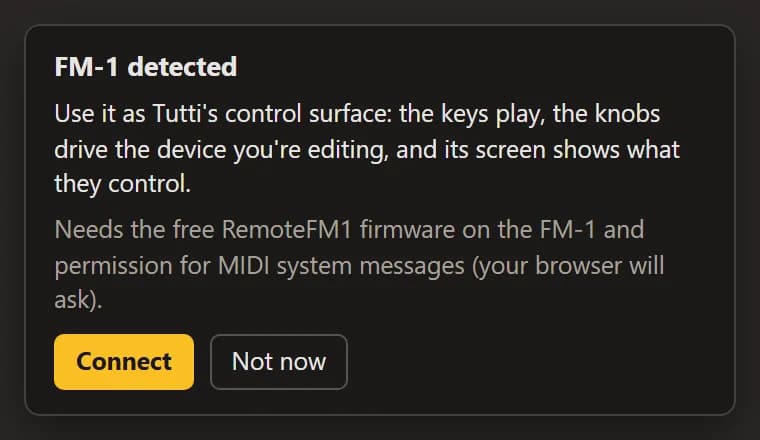
Click Connect. The browser asks once more, this time for full control of MIDI devices (SysEx), which TuttiDAW needs to draw on the FM-1's screen. Allow it.
The card turns into a small bar: “FM-1 · RemoteFM1” with the firmware version, a Device / Mixer switch and Disconnect. The FM-1's screen now shows TuttiDAW.

From now on TuttiDAW reconnects whenever the FM-1 shows up. Disconnect turns that off, and the FM-1 stays a plain MIDI keyboard.
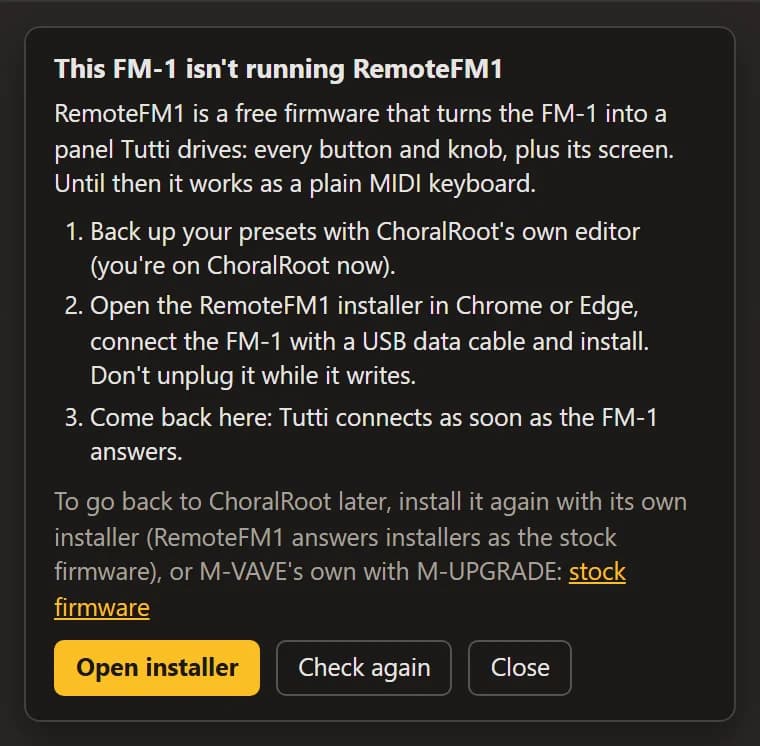
If the unit doesn't answer as RemoteFM1 within a few seconds, the card shows the install steps instead, with a link to the installer and a Check again button. In the meantime the FM-1 still works as a MIDI keyboard.
3. Three faces
The FM-1 shows one of three faces, depending on what you're doing in TuttiDAW.
Panel: an Ensemble or a firmware plugin
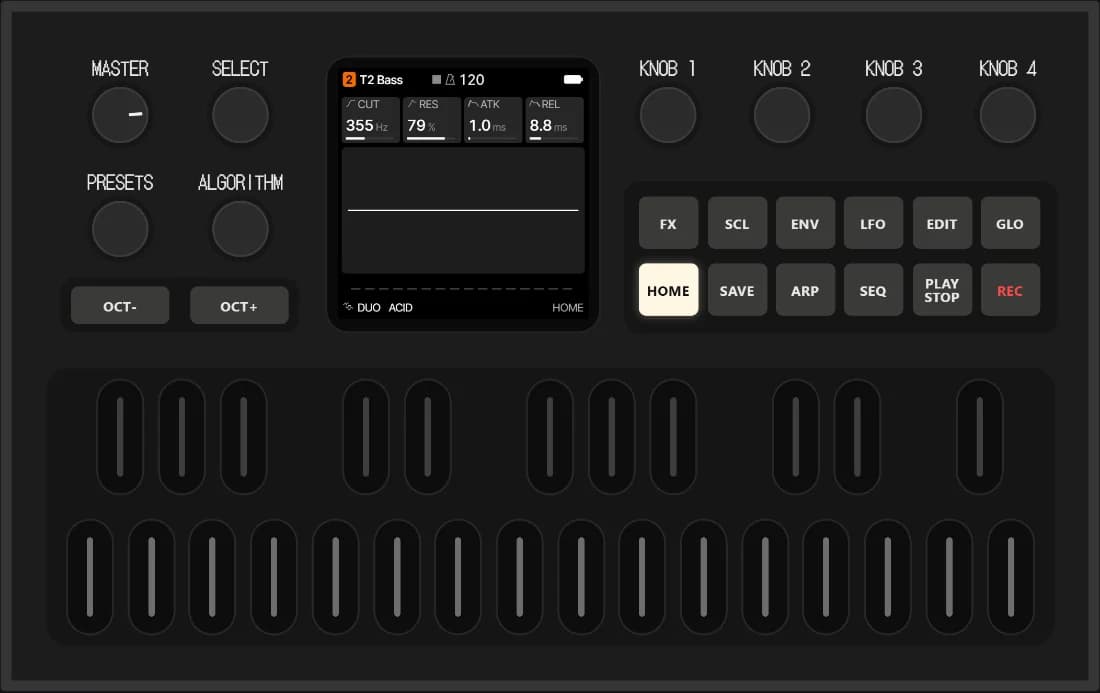
While you work in an Ensemble's editor, the FM-1 becomes that Ensemble's panel: every button and knob and MASTER do what they do on the on-screen panel, and the screen mirrors it. When the window of a firmware plugin that supports it has the focus, TuttiDAW hands it the whole unit, and the firmware draws its own screen and lights its own LEDs. The card shows which panel the FM-1 has taken over.
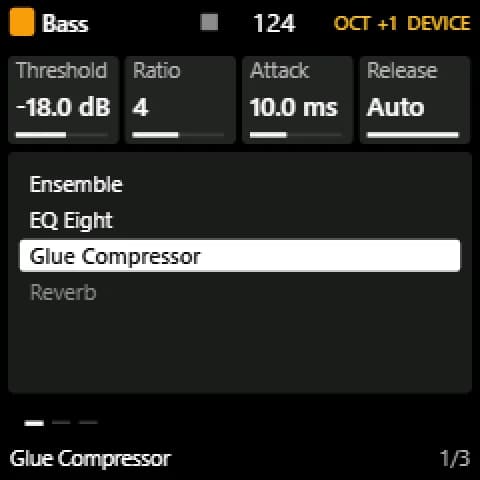
Device (HOME)
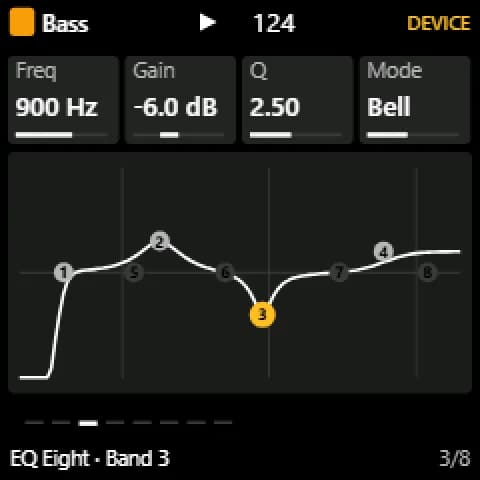
The selected device on the selected track, four parameters at a time on KNOB 1–4. SELECT turns the pages and PRESETS moves to the next device. EQ Eight gets one band per page (Freq, Gain, Q, Mode) with its curve on the screen.
Mixer (GLO)
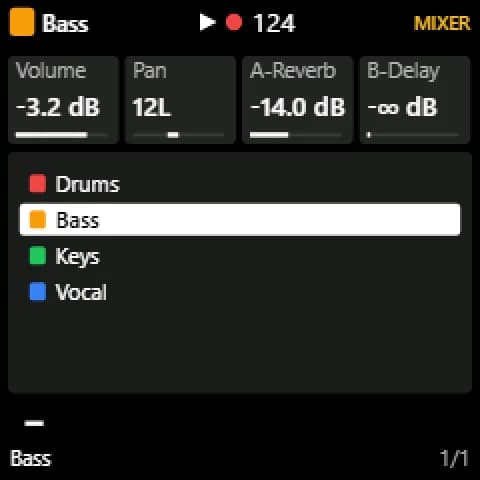
The selected track's Volume, Pan and sends on KNOB 1–4, with the track list on the screen. ALGORITHM steps through the tracks.
HOME and GLO switch faces on the unit; the Device / Mixer switch on the card does the same.
Button map (Device and Mixer faces)
On the Panel face every control belongs to the Ensemble or the firmware. Everywhere else:
| Control | What it does |
|---|---|
| Keys (27, from F3) | Like any MIDI keyboard: through TuttiDAW's usual MIDI input into the armed track, at a fixed velocity of 100. |
| OCT− / OCT+ | Shift the keys down or up an octave, up to four. The lit button shows the shift. |
| KNOB 1–4 | The four parameters on the screen. A fast turn moves further. |
| SELECT | Previous / next page of parameters (EQ Eight: bands 1–8). |
| PRESETS | Previous / next device on the selected track; switches to the Device face. |
| ALGORITHM | Previous / next track. |
| HOME | Device face; press again for its first page. |
| GLO | Mixer face; press again for its first page. |
| FX | Turn the shown device on or off; the FX light is lit while it's on. On EQ Eight, FX switches the shown band instead, and the light still follows EQ Eight's own on/off. |
| MASTER | Main volume. It takes over once you turn it past the current level, so the volume never jumps. |
| PLAY | Play / stop. |
| REC | Record. |
| SCL, ENV, LFO, EDIT, SAVE, ARP, SEQ | Nothing on these faces; they work on the Panel face. |
LEDs: the C keys glow faintly so you can find your place, held keys light up, HOME or GLO shows the face, and PLAY, REC and FX show their state.
Troubleshooting
- No card appears when I plug in the FM-1
- Use Chrome or Edge on a computer, or the desktop app, and allow MIDI devices when the browser asks (if you said no, change it in the site settings next to the address bar). Use a USB cable that carries data, and try another port. TuttiDAW looks for a MIDI port with “FM-1” in its name.
- “TuttiDAW can't reach the FM-1's screen”
- The browser refused full MIDI control (SysEx), or has no Web MIDI. Allow it for this site in the browser's site settings, then click Try again.
- “This FM-1 isn't running RemoteFM1”
- The unit didn't answer as RemoteFM1. Install it (step 1). If it is installed, unplug and replug the FM-1 and click Check again. On Windows a MIDI port works in one app at a time, so close other apps that may be holding it: a firmware editor, another DAW or another TuttiDAW tab.
- Safari, iPhone or iPad
- Safari has no Web MIDI, so the FM-1 can't connect there. Use Chrome or Edge on a computer, or the desktop app.
- The keys light up but nothing sounds
- The keys send notes like any MIDI keyboard: arm a MIDI track that has an instrument, and check that its MIDI input takes all inputs or the FM-1.
No FM-1 at hand?
Everything else works without the unit. The Ensemble's on-screen FM-1 panel plays with your mouse and computer keyboard, and the demo project and the style lessons open right in the browser.
See what TuttiDAW does with FM-1 sounds